





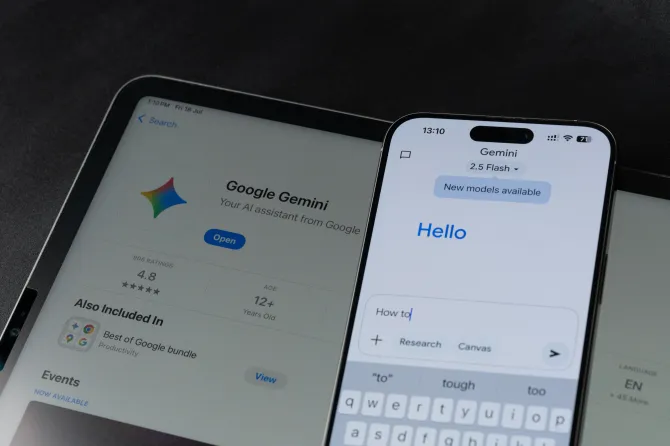
A US class-action lawsuit alleges Google enabled its Gemini artificial intelligence tools by default to access users’ private Gmail, Chat and Meet communications without clear consent.
The case, Thele v. Google LLC, claims the company switched on “smart features” around October 2025 for Gmail accounts, allowing the AI to scan emails and attachments. Plaintiffs argue users must actively locate and disable the setting to opt out.
A federal judge in California dismissed the suit in July for lack of standing, finding the plaintiffs had not shown concrete harm, but granted leave to amend. The case remains pending.
Google has rejected the core claims. The company stated it does not use Gmail content to train its Gemini AI models and that the smart features, which power tools such as email summaries and smart replies, have existed for years and remain under user control.
Users can disable the relevant options through Gmail settings under “Smart features” and “Google Workspace smart features.” Turning them off removes certain AI-powered suggestions but may also affect other personalization tools.
If you have a Gmail account, you need to read this.
Google’s AI now scans your emails and attachments, bank statements, tax files, medical letters, all of it. It turned on by default, and there’s a class-action lawsuit over how.
Here are 5 moves to shut it off, the switch is hidden in two places:
1. The Main Switch
This is the main setting Google shows you, but it’s not the only one.
Gmail (Desktop): Settings → See all settings → Smart features and personalization → Uncheck “Turn on smart features in Gmail, Chat, and Meet” → Save Changes.
2. The Hidden Switch
Turning off the first setting isn’t enough. Most people stop there.
On the same settings page: Google Workspace smart features → Manage Workspace smart feature settings → Turn off both checkboxes → Save.
3. Your Phone
The settings don’t always sync between devices, so check the Gmail app separately.
Gmail app → Menu (☰) → Settings → Select your account → Turn off “Smart features and personalization” → Confirm.
Both settings need to be turned off.
4. Delete Gemini History
If you’ve used Gemini before, your chats may be saved, and some could be reviewed by humans.
Go to http://myactivity.google.com/product/gemini → Turn off Gemini Apps Activity → Delete Activity → All Time.
This removes your past Gemini chat history and stops future conversations from being saved.
5. Move Sensitive Emails
Turning off Gmail’s smart features helps, but for truly private emails, consider using a separate service.
For medical, legal, or financial emails, use a free Proton Mail account. It offers end-to-end encryption and doesn’t use AI to scan your emails.
Keep Gmail for newsletters, promotions, and less sensitive messages.
